Home
admin
|
Gestion d'une infra vSphere 5 October 18th, 2016 |
|||||||||||||||||||||||||||||||||||||||||||||||||||||||||||
Calculer l'espace provisionné par VM et par datastore Déplacer un modèle Clone vs template Analyse des logs Et sans vcenter, on fait comment ? vmxnet3 Pas de redondance réseau Messages d'erreur Client lourd vsphere en anglais Raw Device Mapping (RDM) Mises à jour des hotes Mises à jour des MV SSH Manips en ligne de commande Augmenter la taille d'un disque persistant VMware Linked Cloning technology Serveur vcenter Serveurs view-connection Difference between the terms Reset, Refresh, Recompose and Rebalance
On calcule l'occupation disque en multipliant la taille d'un secteur (512) par le nombre de secteurs (c*h*s cf ci-dessous) puis en divisant par 1024*1024*1024 pour passer en Go. The sector count is determined by multiplying the number of cylinders, heads, and sectors. The number of cylinders, heads, and sectors are defined in the DDB section. Source : https://kb.vmware.com/selfservice/microsites/search.do?language=en_US&cmd=displayKC&externalId=1026266
Comment déplacer un modèle ? (le bouton migrer n'est pas disponible) "Convert it to a virtual machine (right click on guest and choose the appropriateoption), move it via the migrate function (right click on guest and choose "Migrate") and convert it back to a template (right click on guest again and choose to convert it back to a template)." Source : https://communities.vmware.com/thread/213891?start=0&tstart=0
 Templates are best suited for production environments where you want the mass deployment of Virtual Machines along with the installed OS, basic software, and configured settings such as the security policy of your organization, as a base VM. Once a template is deployed, you can install software depending on the role of the server for example IIS or Database.
Templates cannot be powered on. Templates are best suited for production environments where you want the mass deployment of Virtual Machines along with the installed OS, basic software, and configured settings such as the security policy of your organization, as a base VM. Once a template is deployed, you can install software depending on the role of the server for example IIS or Database.
Templates cannot be powered on.
Source : http://robertparten.com/vmware-difference-between-clone-and-template/
Source : http://kb.vmware.com/selfservice/microsites/search.do?language=en_US&cmd=displayKC&externalId=1017939#composerserver "VMware Technical Support routinely requests diagnostic information from you when a support request is addressed. This diagnostic information contains product specific logs and configuration files from the host on which the product is run. This information is gathered using a specific script or tool within the product." View Composer Server
 Migrer, démarrer des VM Migrer, démarrer des VM
postulat : la MV (qui peut etre un vcenter) est arrêtée sur un esxi quelconque qui lui aussi est arrêté Se connecter sur l'ESX sur lequel on veut démarrer la MV
Localiser la MV :
Enregistrer la machine sur le nouvel esx
Lister les VM et obtenir le VMid
Démarrer la machine sur le nouvel esx
 La VM était surement enregistrée sur un autre esx. En démarrant le vcenter fera le ménage, i.e. désenregistrera la VM du premier esx. La VM était surement enregistrée sur un autre esx. En démarrant le vcenter fera le ménage, i.e. désenregistrera la VM du premier esx.
Lors de la création d'une MV Linux, il ne m'est pas possible de sélectionner un adaptateur réseau de type vmxnet3 (qui sont préconisés pour de meilleures performances). Solution : passer le type de ma MV de "Autre Linux (64 bits)" à "Autre Linux 2.6.x (64 bits)"
Problème de configuration : cet hôte n'as actuellement aucune redondance réseau solution : 1/ mettre l'hote en maintenance 2/ supprimer le commutateur standard chargé du vmotion (cf configuration > Mise en réseau) 3/ ajouter la carte réseau anciennement utilisée par le vmotion dans le vswitch du réseau de management 4/ recréer le vmotion dans le vswitch du réseau de management il faut croiser les cartes : pour chaque port (VMotion ou Management Network), dans les associations de cartes réseaux, changer l'ordre de basculement du commutateur et mettre la carte utilisée pour l'autre port en tant qu'adaptateur de réserve.
Unable to remove warning message in cluster: HA failover initiated on <clustername>
ou en francais : "Initiation dune action de basculement de la machine virtuelle par vSphere HA dans le cluster xx du centre de données xx" Solution : désactiver HA puis le réactiver. Source : http://kb.vmware.com/selfservice/microsites/search.do?language=en_US&cmd=displayKC&externalId=2004802 ESXi 5.1 Host : 0% CPU, 0% Memory et 0 secondes uptime
Solution :
Sources http://www.jordansphere.co.uk/esxi-5-1-host-shows-0-cpu-0-memory-and-0-second-uptime/
http://kb.vmware.com/selfservice/microsites/search.do?language=en_US&cmd=displayKC&externalId=1003490
Une erreur d'approvisionnement s'est produite sur le pool vm-7-elev-2a en raison d'un problème de configuration
Impossible de supprimer une MV
La Solution : Make sure that the pool where the vm is located, does not have provisioning enabled. Connect to the composer and browse toC:Program Files (x86)VMwareVMware View Composer, open a command prompt and run : SviConfig -operation=RemoveSviClone -VmName=VMname -AdminUser=TheLocalAdminUser -AdminPassword=TheLocalAdminPassword -ServerUrl=TheViewComposerServerURL If the vm is still there: Connect to the connection server and open adsiedit.msc Log in to one of the View Connection Servers as Domain Administrator. Click Start > Administrative Tools > ADSI Edit. In the console window, right-click ADSI Edit and Click Connect to. In the Name field type: View ADAM Database Select Select or type a Distinguished Name or Naming Context. In the field below Select or type a Distinguished Name or Naming Context, type: dc=vdi,dc=vmware,dc=int Select Select or type a domain or server. In the field below Select or type a domain or server, type: localhost:389 Click OK. Click View ADAM Database [localhost:389] to expand. Click DC=vdi,dc=vmware,dc=int to expand. Right-click the Connection View ADAM Database [localhost:389], and click New > Query. Under Root of Search, click Browse and select the Servers organizational unit. Click OK. In the Query String, paste this search string: (&(objectClass=pae-VM)(pae-displayname=VirtualMachineName"> Where VirtualMachineName is the name of the virtual machine for which you are trying to locate the GUID. You may use * or ? as wildcards to match multiple desktops. Click OK to create the query. Click the query in the left pane. The virtual machines that match the search are displayed in the right pane. Record the GUID in cn=<GUID>. Delete the pae-VM object from the ADAM database: Locate the OU=SERVERS container. Locate the corresponding virtual machine's GUID (from above) in the list which can be sorted in ascending or descending order, Select Properties and check the pae-DisplayName attribute to verify the corresponding linked clone virtual machine object. Verify and delete the pae-VM object. Disk Provisioned Size Greyed Out
"However, whether running, suspended, or shutdown, I am not able to increase the disk size. The option is greyed out, as you can see below. What am I missing?" Solution : supprimer les snaps associés à la machine... Source : https://communities.vmware.com/thread/272616
Pour disposer du client lourd sphere en anglais (il est pratique en cas de soucis de disposer des messages d'erreur en anglais)
Il est parfois nécessaire de créer des machines virtuelles ayant des disques qui écrivent directement sur les LUNs sans passer par des fichiers vmdk. C'est le cas par exemple des machines demandées pour faire des tests de performance cf "best practices for performing a storage performance test" http://kb.vmware.com/kb/2019131 Pour se faire, dans la config de chaque esxi il faut analyser les nvx périphériques de stockage mais pas les ajouter (l'utilisation impose un formation vmfs-3 ou 5). L'utilisation se fera ensuite directement dans la config des VM.
Update manager
Les mises à jour des hotes sont grandement facilitées par l'installation dans vsphere du plugin "update manager". Correctifs
Les correctifs sont à télécharger chez VMware (myvmware > téléchargement > correctifs > ESXi Embedded and Installable). On récupère par exemple un .zip.
( Ce zip contient un autre zip. C'est ce dernier qu'il faut importer lors de l'étape ci-dessous.)
Il faut ensuite aller dans Update Manager, Onglet Référentiel des correctifs et Faire "importer des correctifs".
Cliquer sur « Suivant » et laisser le processus se dérouler en validant les demandes.
Lorsque vous vous rendez dans le référentiel, une ligne apparaît en gras qui correspond au correctif inséré.
Vous pouvez maintenant utiliser lUpdate Manager pour mettre à jour vos ESX/ESXi.
via update manager
Mise à jour du matériel virtuel
reboot !
Autoriser la connexion root avec une authentification avec clés
Il suffit de modifier le fichier /etc/ssh/ssd_config
de relancer le service
puis de copier la clé publique sur serveur
Source : http://kb.vmware.com/selfservice/microsites/search.do?language=en_US&cmd=displayKC&externalId=1002866 Supprimer l'alerte "SSH a été activé" pour l'hote
To disable these warnings using vSphere Client: Select the ESXi host from the Inventory. Click the Configuration tab. Click Advanced Settings in the Software menu. Navigate to UserVars > UserVars.SuppressShellWarning. Set the value from 0 to 1. Click OK. Source : http://kb.vmware.com/selfservice/microsites/search.do?language=en_US&cmd=displayKC&externalId=2003637
Version et build
Power
To power on a virtual machine from the command line: List the inventory ID of the virtual machine with the command:
Note: The first column of the output shows the vmid. Check the power state of the virtual machine with the command:
Power-on the virtual machine with the command:
Source : http://kb.vmware.com/selfservice/microsites/search.do?language=en_US&cmd=displayKC&externalId=1038043 Ping
Configuration des Adaptateurs de stockage
Lister les adaptateurs
Lister la config d'un adaptateur
il faut suivre séquentiellement ces étapes : Augmenter la taille du disque dans vcenter :
vcenter-view > inventaire > VM > click droit sur la VM > Modifier les paramètres > disque dur ... Modifier la config de Windows :
3. Select a virtual machine and right click selecting Open Console 4. Login to the virtual machine with administrative rights 5. Click Start and the right click on Computer selecting Manage 6. Select Disk Management 7. Select the disk to be change and right click selecting Extend Volume 8. Click Next 9. Click Next 10. Click Finish 11. Close the window and logoff the machine Source : http://www.virtualwood.co.uk/?p=415 Si le bouton "gérer" ne fonctionne pas, il faut ouvrir un terminal et taper :
Source : http://www.clubic.com/forum/microsoft-windows/windows-7-ordinateur-gerer-ne-fonctionne-pas-id671852-page1.html
Extraits
Source : http://myvirtualcloud.net/?p=1222 "After a Parent VM is assigned to a Desktop Pool a clone (Thin Size) of this VM is created. This Thin clone is called Replica."
"After the replica is created VMware View start creating Linked Clones. The linked clone (LC) is an empty disk that will grow overtime according to block changes requested by the Windows GuestOS. This disk is also called Delta disk because it accumulates all delta changes, and can grow to a maximum size of the Parent VM. This replica disk is read-only and used as primary disk. The writes and/or block changes are written/read from and the Delta disk."
"It is a recommended practice to allocate Tier 1 storage such as SSD drives to host the replica as all virtual desktops in the cluster will be using a single read-only VMDK file as their base image."
"VMware View also creates an optional disposable disk for each virtual desktop. This disposable disk contains temporary files that are deleted when the virtual desktop is powered off. The files on the disposable disk are: the pagefile, windows system temporary files and VMware log files."
"The user profile is redirected to the Persistent Disk that can be managed, detached and attached to different virtual desktops."
The Internal Disk is tiny and is created to store the computer account password to ensure connectivity to the domain when a desktop is refreshed (Ill discuss later in this post). Additionally, the configuration for Quickprep and Sysprep are stored in this disk.
Un résumé : 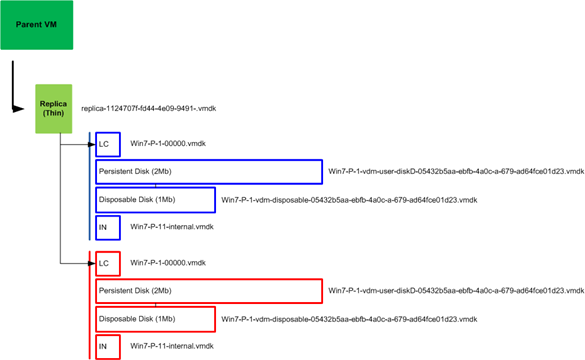 Mes notes
Le réplica est utilisé par toutes les MV du pool => le mettre sur un SSD permet de gagner bcp en perf
Les disques C des machines correspondent à ce réplica + un delta disk
Persistent disk : D: chez nous
Disposable disk : G: chez nous
Internal Disk : on le voit avec view horizon. Il fait 0.02 Go et napparaît dans les montages windows.
Mes notes
Le réplica est utilisé par toutes les MV du pool => le mettre sur un SSD permet de gagner bcp en perf
Les disques C des machines correspondent à ce réplica + un delta disk
Persistent disk : D: chez nous
Disposable disk : G: chez nous
Internal Disk : on le voit avec view horizon. Il fait 0.02 Go et napparaît dans les montages windows.
Restarting vCenter Server services
To restart a vCenter Server service: Log in as an administrator to the server that is running vCenter Server.
Click Start > Run.
Type services.msc
Press Enter.
From the list of services right-click on the service you wish to restart. For example, VMware VirtualCenter Server, or VMware vCenter Server depending on the version you are using.
Click Restart and wait for the service to complete restarting.
When you restart the VMware VirtualCenter Server service, all connected users are disconnected from their vSphere/Virtual Infrastructure Client sessions.
Note : redémarrer uniquement le service view composer ne cause pas de pb 
Note : rebooter vcenter-view ne cause pas de déconnexion
Source : http://kb.vmware.com/selfservice/microsites/search.do?language=en_US&cmd=displayKC&externalId=1003895 Logs
%ALLUSERSPROFILE%\VMware\VMware VirtualCenter\Logs\vpxd.log
Ce service logiciel agit comme un broker pour les connexions client. View Connection Server authentifie les utilisateurs via Windows Active Directory et dirige la demande vers la machine virtuelle appropriée, le PC physique ou lame, ou le serveur Windows Terminal Services. Source : http://pubs.vmware.com/view-50/index.jsp?topic=/com.vmware.view.planning.doc/GUID-6CAFE558-A0AB-4894-A0F4-97CF556784A9.html Quand on redémarre les serveurs view-connect, les utilisateurs n'accèdent plus à leur VM => ces serveurs ne servent pas uniquement au lancement de la connexion
Reset (réinitialisation)
This does explain what happens when reset the desktop! It just resets the Virtual Machine without shutting down the operating system properly like it does when clicking the reset option in the vCenter. The user session will be disconnected and all unsaved work will be lost. Sur un vrai système, cela correspondrait à éteindre brutalement le système. Recompose
With this function the Administrator can change the snapshot within the parent VM or he can change to another parent VM. In both cases a new Replica image will be provisioned to all LUNs configured with the pool. Refresh
During the refresh the snapshot or parent VM isnt changed. This action does only reset the delta disk to its initial state, to the source. This is be done to reduce the amount of storage used by the VM. Rebalance
During this action all virtual machines will be rebalanced between the LUNs to use the space efficiently. Source : http://www.thatsmyview.net/2009/07/07/reset-refresh-recompose-rebalance/ |

| Dernières modifs |
|---|
| VMware Workstation (November 7th, 2020) Gestion d'une infra vSphere 5 (October 18th, 2016) From 5.0 to 5.5 (October 18th, 2016) Analyse des perfs et tuning (October 18th, 2016) Debian (October 18th, 2016) Pools (October 18th, 2016) Veeam (October 18th, 2016) |
| Contact | ||
|---|---|---|
| Pour m'envoyer un mail, Pour me laisser un commentaire :
|